Connectivity Test
Check reachability using the current test method; don't assume one result means all requests will work.
OFFICIAL MANUAL / GETTING STARTED
Follow the steps in order: add, choose a mode, connect, verify, and troubleshoot. First confirm that an existing configuration can handle a real request, then adjust rules and settings as needed.
STEP 01 / ADD SERVER
First, determine whether you have individual server details or a subscription link. They use different entry points; do not paste a complete subscription link into Host.
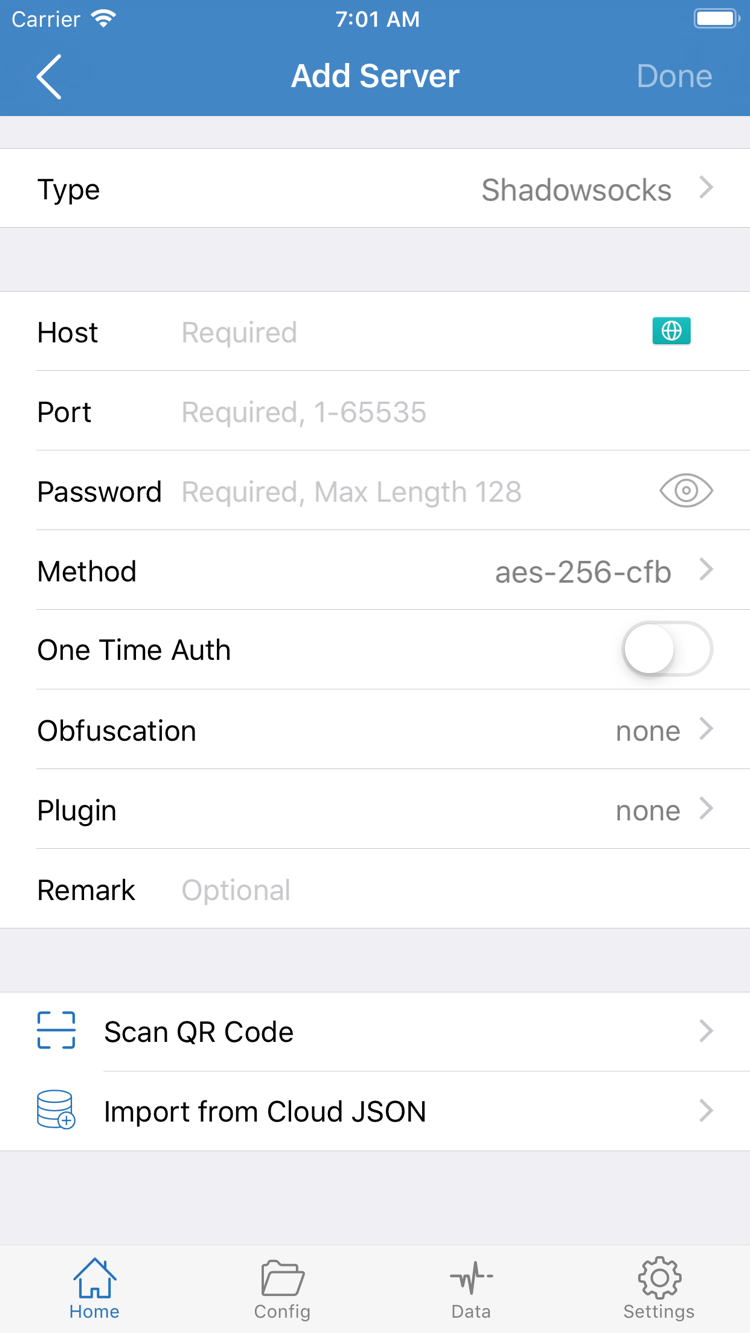
In Home, find Add Server under SERVER to open the server editor. Tap Type first and choose the protocol that matches your existing details, then fill in Host, Port, and the relevant authentication fields. Type determines which fields appear, so select the protocol before entering and checking the details. Don't fill in every field and switch Type afterward.
For example, with Shadowsocks, enter the server's domain name or IP address in Host, the port number in Port, and the existing password and encryption method in Password and Method. Host is not a web address, so don't include a URL path; enter the port number without a colon. For Trojan, VMess, VLESS, or another protocol, select the corresponding Type and fill in its fields. Don't reuse the Shadowsocks field combination.
When finished, check each field for leading or trailing spaces, capitalization, and digits, then save and return to Home. A new list entry only confirms that the details were saved; it doesn't prove the server can connect. Check its protocol, address, and port, then select the entry you plan to use. If you're unsure what a protocol field means, consult the glossary and verify uncertain values with your own provider rather than guessing.
If you have a subscription link, find Subscribe on the Config page, paste the full link, and confirm the import. The entry point may appear in a different place depending on the interface layout; follow the label shown in the app. Keep the link's original path and query parameters intact, including characters that may look unnecessary. Subscription links may contain authentication details, so paste them only into the appropriate field; don't share them in public comments or screenshots.
Wait for the request to finish, then return to Home and check whether the expected entries appear under SERVER. If the list is empty, first check for an import or network error; don't repeatedly add the same subscription. Importing a subscription provides a server list, while a Config file may also contain items such as Rule. Seeing entries in the list doesn't mean routing rules are configured; check Global Routing separately in the next step.
If you have a server QR code, use Scan QR Code and check the recognized details. Import supported links from the clipboard by following the app's prompts. Import from Cloud JSON is a separate option; use it only if your file matches that entry point's requirements. You don't need to use every option—choose the one that matches the details you have.
STEP 02 / GLOBAL ROUTING
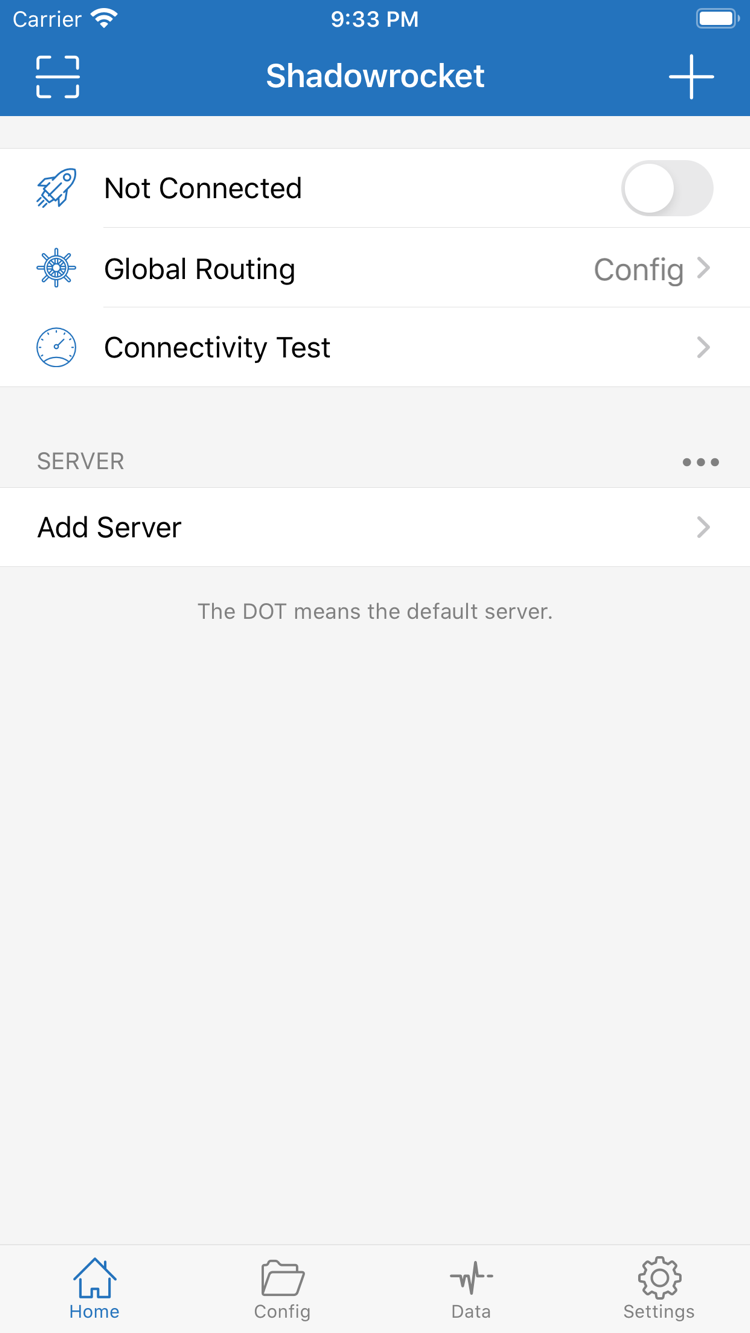
Return to Home and open Global Routing. This setting determines how requests are handled; it isn't a server protocol selector.
In Global Routing, choose Config, Proxy, or Direct, then confirm your selection in Home. Before you begin, be clear about what you want to verify: use Config to route requests according to rules; use Proxy to check whether the selected proxy server can handle requests; use Direct to check basic access over your local network. These are mutually exclusive modes, not switches to turn on one by one. Choose only the mode you need.
| Mode | How Requests Are Handled | Check Before Use |
|---|---|---|
| Config | Requests follow the rules and policies in the active configuration | Is the configuration file selected, and are its policy references valid? |
| Proxy | Routes requests through the proxy to help test the selected server | Is the correct server selected, and does the real request succeed? |
| Direct | Requests are sent directly | Is the local network itself working? |
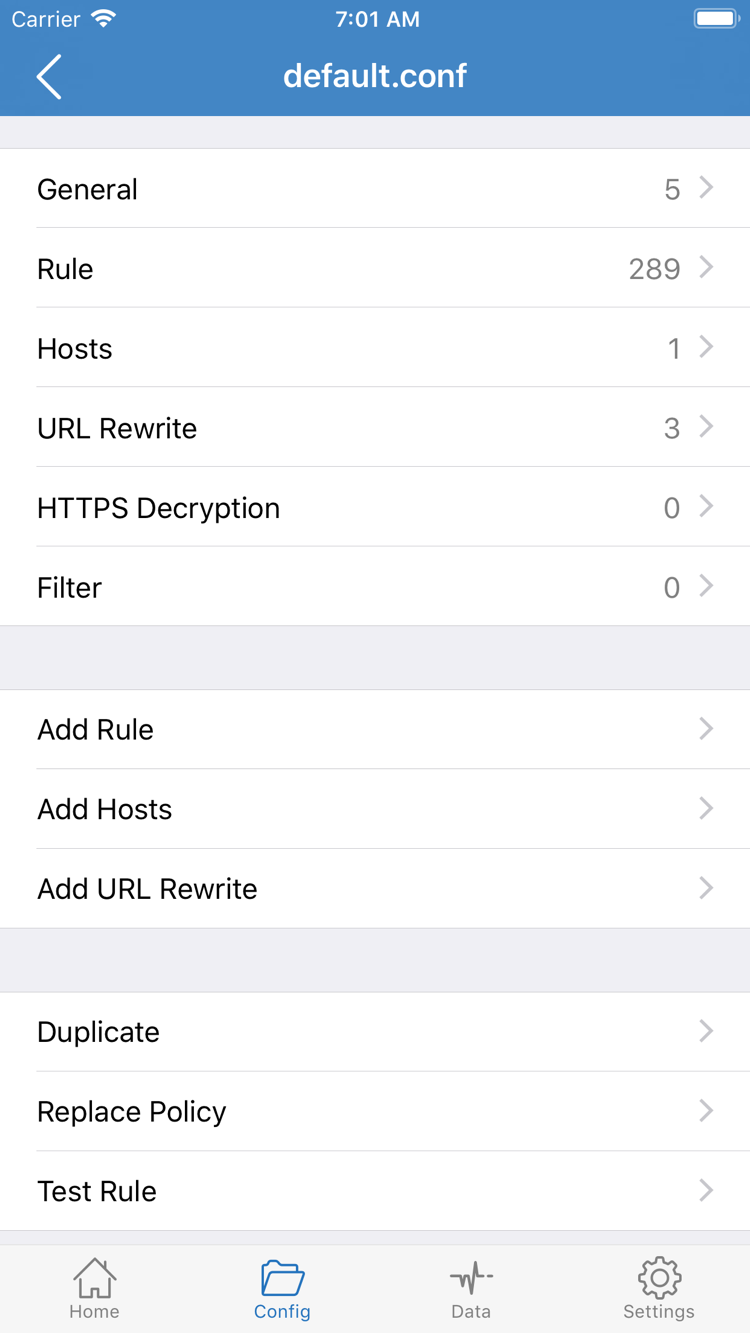
Open Config, select the configuration file you plan to use, and review its contents. In the official screenshot, General, Rule, Hosts, URL Rewrite, and HTTPS Decryption are separate sections. For initial setup, focus on Rule; you don't need to change the other sections just to connect. The screenshot shows the configuration editor, not the Global Routing selector in Home. The names are related, but the screens serve different purposes.
In Rule, check the order of the rules and their target policies. Rules are generally evaluated in order; when an earlier rule matches, later rules may not apply to that request. DOMAIN-SUFFIX matches domain suffixes, GEOIP matches based on an IP address's geographic information, and FINAL handles requests that don't match earlier rules. Don't remove FINAL just to test, and don't copy unknown policy names into the configuration.
For example, DOMAIN-SUFFIX,example.com,PROXY is a rule syntax example, not server information that can establish a connection. Before using it, make sure PROXY maps to a valid policy or selection in the active configuration. Text in a rule doesn't create a server. If you're unfamiliar with rule syntax, keep the existing configuration and see Global Routing and rule-based routing for details on how matching works.
Before moving on, make sure you can identify the current Global Routing mode in Home. If you used Proxy as a temporary comparison, switch back to Config as planned after testing and verify the real request again. Don't leave the comparison mode selected by default without a reason.
STEP 03 / CONNECT
Check the server and mode before connecting. The first connection also requires system permission; stopping at a system prompt doesn't mean the connection is established.
Return to Home. Check that the selected entry under SERVER is the server you plan to test, then confirm Global Routing is still set to the mode you chose. Turn on the switch at the top. Not Connected appears when the app is disconnected. After turning on the switch, watch the status and system prompts while the connection completes. Don't repeatedly change servers and switches before the status settles.
The first time you connect, the system may ask to let Shadowrocket add a VPN configuration. Confirm that Shadowrocket initiated the request, then follow the system prompts and complete the required device authentication. This configuration lets the system route relevant network requests through the app; it doesn't include a usable server or replace subscription import. If you deny or cancel, the connection may not proceed. Start the connection again and grant permission to continue.
After granting permission, return to the app and check whether the connection status remains active. If the switch turns off immediately, first confirm that permission was granted, then check that the selected entry exists and its details were saved. Don't change DNS, Rule, or other advanced settings repeatedly at this stage. Otherwise, even if the connection works later, it will be hard to tell which change made the difference.
Check whether another VPN connection is running on your device. To switch, stop the current connection first, then connect with Shadowrocket for this test. This helps avoid mistaking a replaced connection for incorrect server details. When you return to the app, check the current status rather than relying on a system indicator you saw earlier.
An active connection means the system network configuration is running, but it doesn't prove that every destination is reachable or that every request uses the selected server. Next, run Connectivity Test and visit an actual page to check both the test target and your real use case.
STEP 04 / CONNECTIVITY TEST
Run a test, open a page you need to access, then check the policy. Each step answers a different question, so consider the results together.
Check reachability using the current test method; don't assume one result means all requests will work.
Make the request you need to verify again. Don't judge the connection by previously cached page content alone.
Check for traffic changes and any available logs to confirm the request appeared and was handled as expected.
Tap Connectivity Test in Home, wait for it to finish, and note whether it succeeded, timed out, or returned another error. The result depends on Test Method in Settings and the test target; a single timeout doesn't mean every connection has failed. Don't judge the configuration by comparing result numbers alone. First check whether the test completed, then whether a real request gets a response.
Keep the connection active, open the page or app you need to access, and make the request again. A page that fully loads, a completed sign-in, or newly retrieved content tells you more about real access than an old page left on screen. If the page may be cached, refresh it or try a new browsing session. Don't change the server, network, and mode at the same time during testing, or you won't be able to reproduce the difference.
Then return to Shadowrocket and check for traffic changes in Data. If the current interface provides request logs, look for the request by its domain or the time you made it. Increased traffic only shows network activity; it doesn't prove the target went through the proxy. Also check Global Routing, the matching rule, and the final policy. With Config, a request going direct under the rules may be exactly what's expected.
If a real request works in Proxy but fails after switching back to Config, first check the rules, policy references, and relevant name resolution. You don't need to rebuild the entire server entry right away. Conversely, if basic local network access fails in every mode, troubleshoot the device's network first. Note the network used, the selected server, the mode, and the failed request to give the next troubleshooting step a clear starting point.
STEP 05 / DIAGNOSTICS
First identify whether the problem occurs during import, permission, connection, or access. Change one thing at a time, retest, and then decide whether to keep the change.
Go back to Subscribe and check that you copied the full link, especially its trailing parameters, line breaks, and extra spaces. First confirm the device has network access, then update once through the same entry point and note the exact error. A successful subscription update doesn't necessarily mean the list is usable. If the response doesn't meet the entry point's requirements or your service is no longer active, check the details with your own provider. Don't guess a replacement URL or repeatedly import the same content to hide the original error.
Return to Home and try connecting again. Check whether a system prompt still needs your confirmation. If needed, open the device's system settings to verify that Shadowrocket's VPN configuration exists, and check whether another VPN has replaced the connection. Resolve permission and connection status first; server responses come later. If the system connection hasn't been established, changing Rule usually won't fix the problem at this stage.
Open the selected entry under SERVER and check Type, Host, Port, and authentication details. Make sure you haven't selected a different entry with a similar name. For protocols that rely on TLS, also check SNI, certificate validation, and related transport settings against the original details. An incorrect device date or time can also affect TLS validation. If you see a certificate error, first verify the domain, time, and server details. Don't treat weaker validation as a routine fix.
Note the current Global Routing mode, temporarily use Proxy to retest the same destination, then restore the original mode. If the problem occurs only in Config, first check Rule match order, policy names, and whether the correct configuration is selected. If domain resolution seems abnormal, review the existing DNS settings and first undo any recent changes you made, then test again. DNS affects part of the resolution path; it isn't a universal fix for connection errors. See DNS and network terms for related concepts.
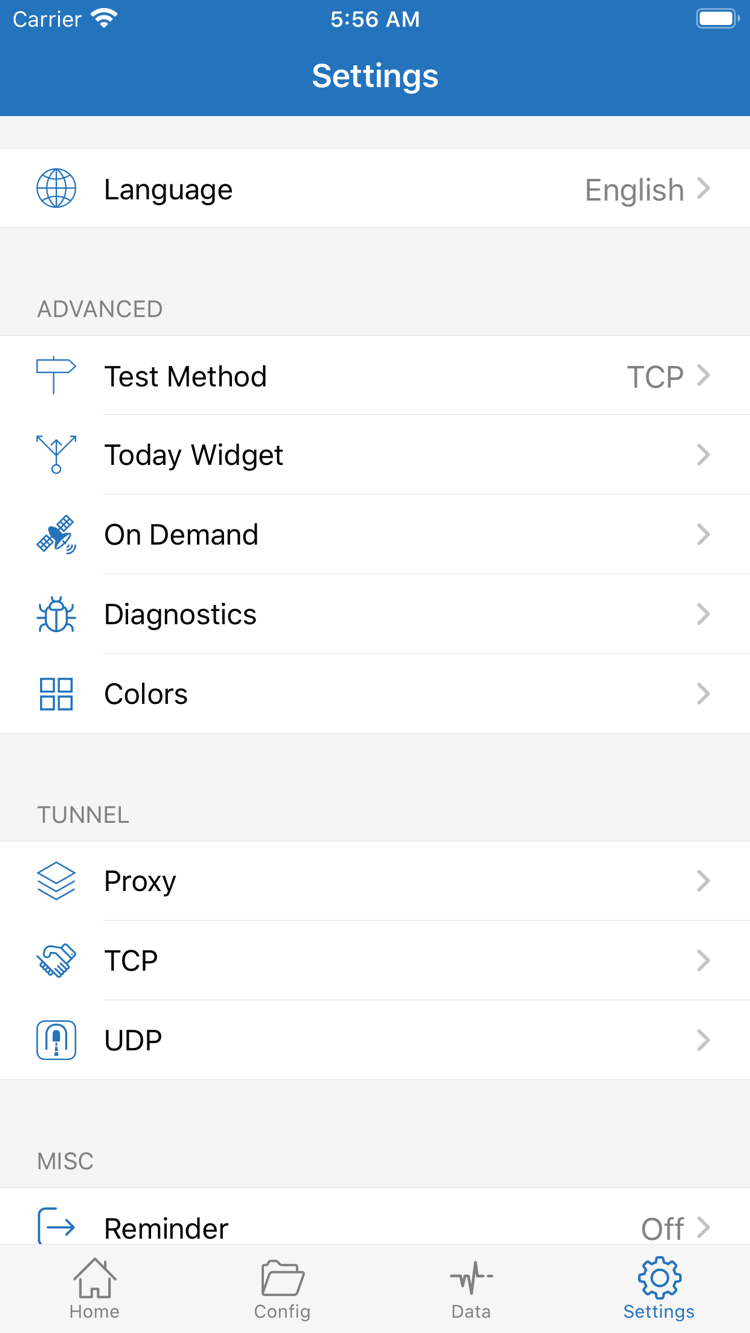
Open Settings and check Test Method to confirm that both Connectivity Test runs use the same method. For further investigation, use the diagnostic tools currently available in Diagnostics and note when the failure happened, the error text, and the steps you took. On Demand triggers connections based on conditions. During initial manual testing, if you've configured it, watch for automatic connection changes so you don't mistake them for the result of a manual action.
When reporting an issue to your own provider, include the protocol type, the stage where it failed, the network environment, and the individual comparisons you've already tried. Before sharing screenshots or logs, hide subscription links, Password, authentication details, keys, and other sensitive information. Don't publish your full configuration for troubleshooting. The error text and steps to reproduce the issue are usually enough to narrow it down.
After troubleshooting, restore the Global Routing mode you plan to use and verify a real request again. Once the new settings work, save any configuration backup you need and update existing subscriptions through their original entry point. App updates are delivered through the App Store; reinstalling the app doesn't restore server or rule details. For a systematic troubleshooting process, see the connection troubleshooting section of the user guide.